
Download Screenflick – macOS screen capture, free screencasting tool
Overview of Screenflick
Screenflick is a lightweight yet powerful screencasting application built specifically for macOS. In a world where visual communication is becoming the norm, being able to capture your screen quickly and reliably is essential for educators, developers, marketers, and anyone who wants to share a digital workflow. Screenflick delivers a clean, beginner‑friendly interface that puts all the necessary controls at your fingertips without overwhelming you with endless options.
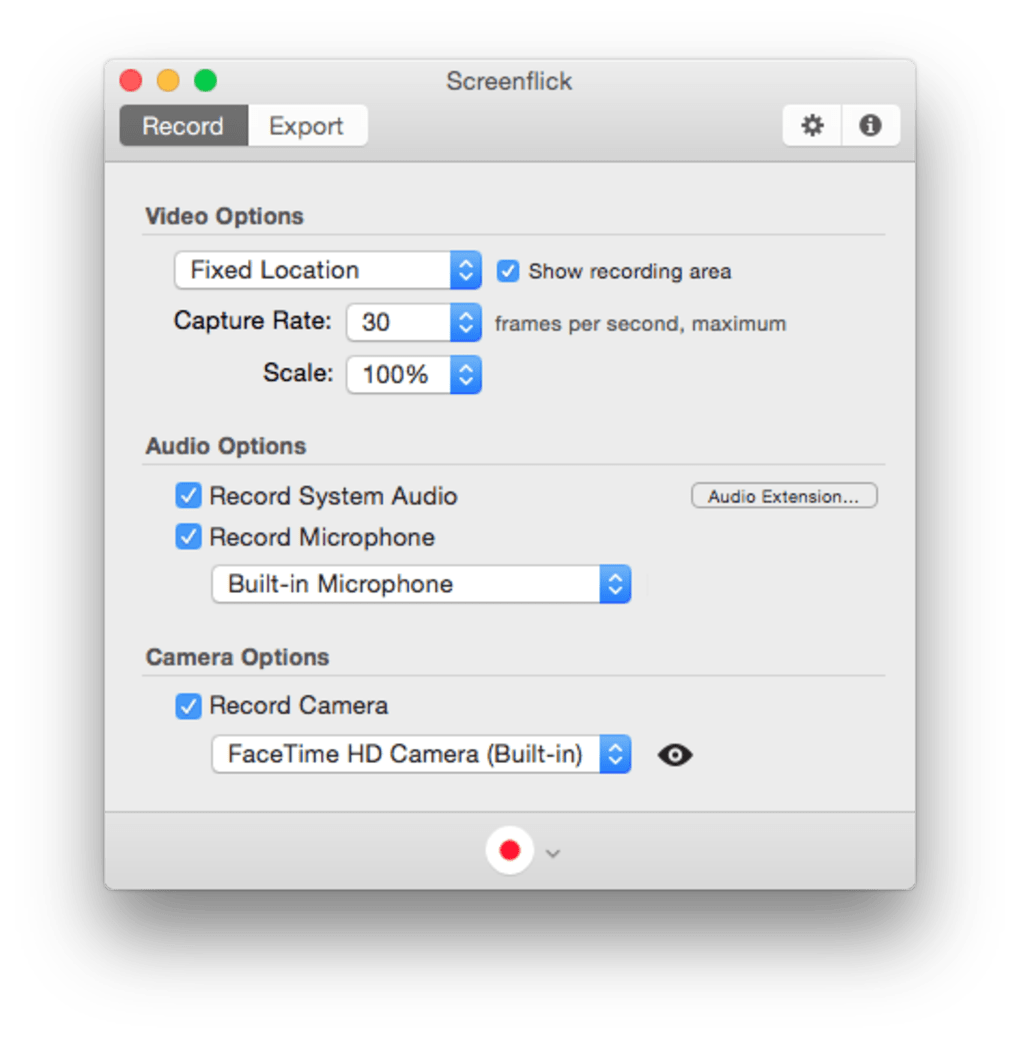
The program lets you record any portion of your display—from a tiny 1/8‑screen window to the full screen—while supporting up to 30 frames per second, which is more than enough to produce smooth, professional‑looking video tutorials. Audio can be captured from your microphone, the system sound, or both, and you can even enable a virtual camera overlay that follows your cursor and highlights mouse clicks. All of these features are accessible through a simple hot‑key (Shift‑Command‑2) that launches the app instantly, making it perfect for users who need to start recording on the fly.
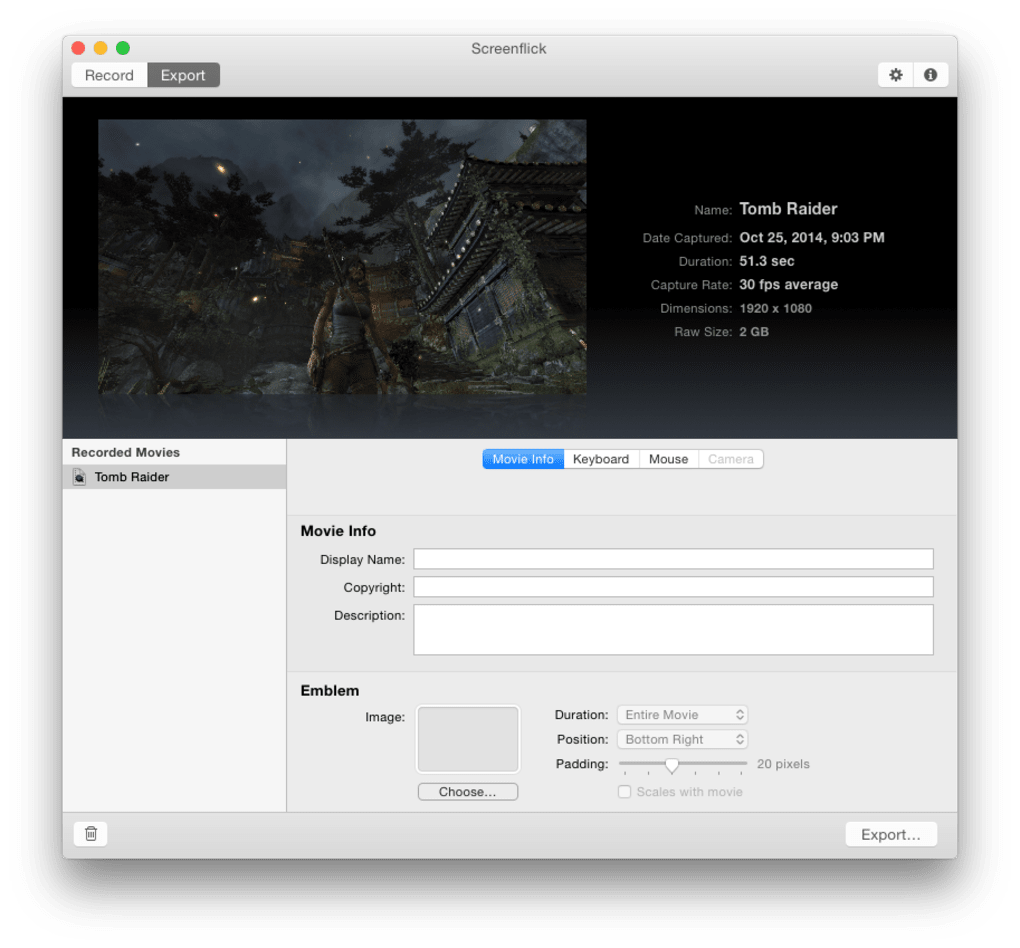
Beyond the core recording capabilities, Screenflick offers a modest set of post‑capture options. You can trim clips, adjust the video bitrate, and export directly to popular formats such as MOV or MP4. The software also respects macOS privacy settings, ensuring that your recordings remain private unless you choose to share them. While it doesn’t include a dock or menu‑bar icon by design, this minimalistic approach reduces clutter and keeps your workspace tidy. The recent update addressed a permissions issue that previously prevented some users from installing Screenflick for all accounts on a shared Mac, reinforcing the developer’s commitment to reliability and user experience.
Overall, Screenflick stands out as a no‑frills, secure solution for anyone who wants to create high‑quality screencasts without paying a subscription fee. Its balance of simplicity, performance, and macOS integration makes it a strong contender among free screen‑recording tools.
Key Features & Capabilities
- Customizable Capture Area: Choose from predefined ratios (1/8, 1/4, 1/2, 3/4, full screen) or manually resize the recording window at any time.
- High‑Resolution Recording: Capture up to 30 frames per second with adjustable bitrate to suit both fast‑moving tutorials and static presentations.
- Audio Options: Record system audio, microphone input, or a mix of both, with separate volume controls for each source.
- Cursor Highlight & Click Animation: Enable a visual cue that follows your cursor and displays click effects, improving viewer comprehension.
- Hot‑Key Launch: Start Screenflick instantly with Shift‑Command‑2, eliminating the need for dock or menu‑bar icons.
- Basic Editing Tools: Trim the beginning or end of a clip directly within the app, without requiring third‑party software.
- Multiple Export Formats: Save recordings as MOV, MP4, or GIF, allowing easy sharing across platforms.
- Privacy‑First Design: All recordings are stored locally by default, with optional cloud integration for those who prefer remote backup.
- Lightweight Footprint: The app consumes minimal CPU and RAM, making it suitable for older Mac models.
Each feature has been designed with the average macOS user in mind. For example, the cursor‑highlight option eliminates the need for third‑party plugins that many video editors rely on to show mouse clicks. Likewise, the ability to record system audio without additional drivers simplifies the process for podcasters and game reviewers. Because Screenflick is built on native macOS frameworks, it integrates seamlessly with other Apple applications like QuickTime and iMovie, allowing you to move from capture to final edit in just a few clicks.
Another noteworthy aspect is the app’s support for high‑DPI (Retina) displays. Recordings retain crisp text and sharp UI elements, ensuring that instructional videos look professional on both 1080p and 4K monitors. While the free version offers a generous set of capabilities, a one‑time purchase unlocks advanced options such as custom frame rates, extended export presets, and priority support. This tiered approach gives users the flexibility to start with a completely free tool and upgrade only if they need the extra power.
Installation, Usage & Compatibility
How to Download and Install Screenflick
Getting Screenflick up and running on your Mac is straightforward. Follow these steps for a hassle‑free installation:
- Visit the official Screenflick website and click the Download for macOS button.
- The installer (a .dmg file) will appear in your
Downloadsfolder. Double‑click to open it. - Drag the Screenflick icon into the
Applicationsfolder as instructed. - Launch the app from
/Applications. The first run will prompt you to grant screen‑recording permissions in System Settings → Privacy & Security → Screen Recording. Click Allow and restart the application. - If you plan to use the hot‑key (Shift‑Command‑2), go to Screenflick → Preferences → Keyboard and confirm the shortcut is active.
First‑Time Use and Basic Workflow
When you open Screenflick, a translucent overlay appears, indicating the current capture region. Use your mouse to drag the corners and select the desired portion of the screen. To switch to a preset size, press the corresponding number key (1 for 1/8, 2 for 1/4, etc.) or choose from the Size menu in the top‑right corner. Before recording, check the Audio tab to enable microphone or system sound. If you want to highlight cursor movements, toggle the Cursor Effects option.
Press the red Record button (or the hot‑key) to start capturing. While recording, you can pause and resume without losing the current timeline. When you’re done, click Stop. The video automatically opens in the built‑in preview window where you can trim the clip, adjust the export settings, and choose the output format. Finally, click Export to save the file to your desired location.
System Requirements and Operating System Support
Screenflick runs on macOS 10.14 (Mojave) and later, including macOS Ventura and macOS Sonoma. It is optimized for both Intel‑based Macs and Apple Silicon (M1, M2, and newer) thanks to native Universal Binary support. Minimum hardware specifications are modest: 2 GB RAM, 200 MB of free disk space for the app itself, and a processor capable of 2 GHz or faster. Because the software leverages the built‑in hardware acceleration of macOS, it performs well even on older MacBook Air models.
For users who need to capture high‑frame‑rate gameplay or intensive 3D rendering, Screenflick can be paired with external video encoders, but the default 30 fps cap already satisfies most educational and presentation scenarios. The app also respects macOS’s Gatekeeper and notarization processes, ensuring that you download a secure, verified binary.
Pros, Cons & Frequently Asked Questions
Pros & Cons
- Pros
- Intuitive, minimal interface ideal for beginners.
- High‑quality 30 fps recording with Retina support.
- Flexible audio capture (system, mic, or both).
- Cursor highlight and click animation improve instructional clarity.
- Lightweight footprint; runs smoothly on older Macs.
- Free version offers generous features; one‑time purchase unlocks advanced options.
- Cons
- No persistent dock or menu‑bar icon may confuse first‑time users.
- Lacks advanced editing suite; requires external apps for complex post‑production.
- Export presets are limited compared with paid competitors.
FAQ – Screenflick (Structured Data)
Is Screenflick completely free?
Screenflick offers a free version with core recording features, unlimited saves, and basic export options. A one‑time purchase unlocks advanced settings such as custom frame rates, additional export formats, and priority support.
Can I record my Mac’s system audio without a third‑party driver?
Yes. Screenflick includes built‑in system‑audio capture that works after you grant the appropriate permissions in macOS security settings.
Does Screenflick support Apple Silicon Macs?
Absolutely. The application is distributed as a Universal Binary, meaning it runs natively on both Intel and Apple Silicon (M1, M2, etc.) devices.
How do I enable the cursor‑highlight feature?
Open Screenflick’s preferences, go to the Cursor tab, and check “Show cursor effects.” You can also toggle it on‑the‑fly from the recording overlay by clicking the cursor icon.
Can I edit a recording after I’ve stopped?
Screenflick provides basic trimming and bitrate adjustment within the app. For more complex editing (transitions, captions, etc.), you’ll need to export the file and use a dedicated video editor such as iMovie or Final Cut Pro.
Conclusion & Call to Action
Screenflick delivers exactly what many Mac users need: a fast, reliable, and straightforward way to capture screen activity without the overhead of expensive, feature‑bloat software. Its focus on essential tools—customizable capture area, high‑quality video, flexible audio, and cursor highlighting—makes it a perfect entry point for educators, developers, and marketers who want to produce polished screencasts on a budget. While the lack of a persistent dock icon and limited built‑in editing may require a small adjustment period, the overall experience is smooth, secure, and well‑integrated with macOS.
If you’re looking for a free, secure, and easy‑to‑use screencasting app that respects your privacy and runs efficiently on both Intel and Apple Silicon Macs, Screenflick is an excellent choice. Download it today, give it a spin, and see how quickly you can turn ideas into shareable video content.
Ready to start recording? Click here to download Screenflick for free and begin creating professional‑grade screencasts in minutes.







